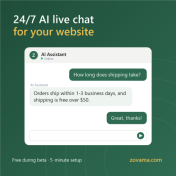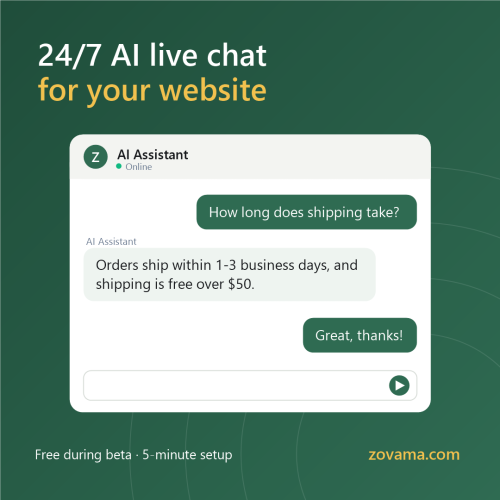
What does a visitor do when they can't find an answer on your website within a few seconds? Most of the time, they close the tab and go to a competitor. A "how long does shipping take?" question that arrives at midnight and goes unanswered can easily be a lost sale.
The good news: you no longer need a support team working around the clock to answer these questions. In this guide, we'll show you step by step how to add an AI assistant that learns from your own website. Setup takes about five minutes, and it's completely free during the beta.
With traditional live chat, a person has to answer every question. With AI live chat, an assistant that knows your business sits behind the chat window on your site.
We built Zovama to do exactly that. Zovama's assistant learns from three sources:
The assistant answers only from these sources and doesn't make things up. When it isn't sure, it says so honestly and hands the chat over to you.
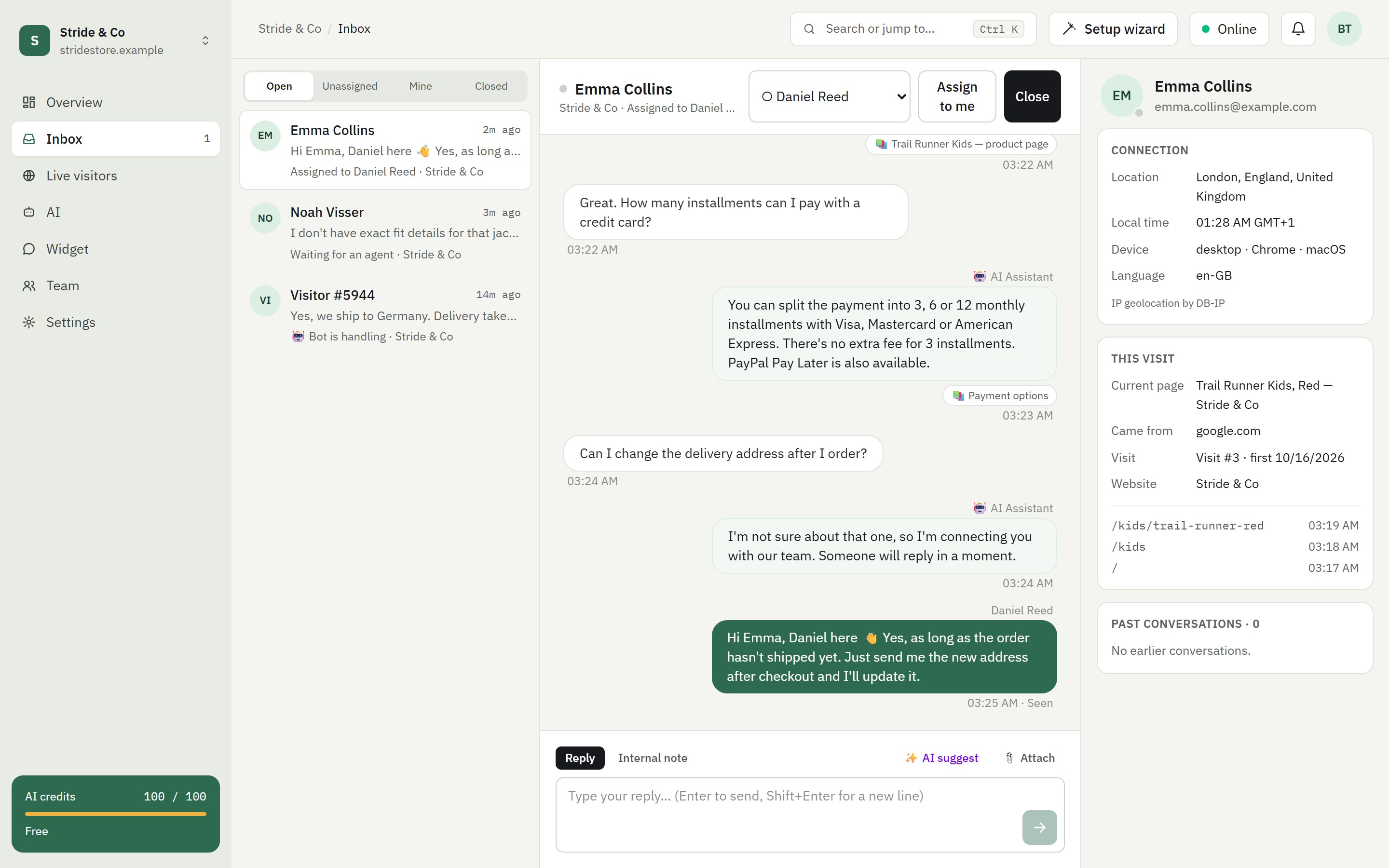
The inbox: the assistant answers questions and hands over to the team when it doesn't know. On the right, you can see the visitor's location, device and the pages they visited.
Sign up for free at zovama.com. No credit card is needed. After signing up, a setup wizard guides you through each step.
Enter your website address and the assistant reads your pages within a few minutes. You can also upload documents or write your frequently asked questions at this step. Then ask the assistant a few questions in the dashboard to test its answers.
Match its colour, welcome message and position on the page to your website.
Your dashboard gives you a single line of install code. All you need to do is add it to your site:
</body> tag. HTML guideOnce the code is in place, use the "Check installation" button in the dashboard to confirm it's working.
When the assistant can't answer a question, or the visitor wants to talk to a person, the chat is handed over to your team. You take over and reply from the dashboard or your phone. If nobody is online at that moment, the visitor can leave their email address and you reply when you're back.
Unanswered questions are also collected in a list. Once you write the answer, the assistant learns it and won't get stuck on the same question again.
The assistant replies in whatever language the visitor writes in, so your website only needs to be in one language. When your team takes over a chat, live translation kicks in: the visitor's messages are translated into your language, and your replies into theirs, automatically.
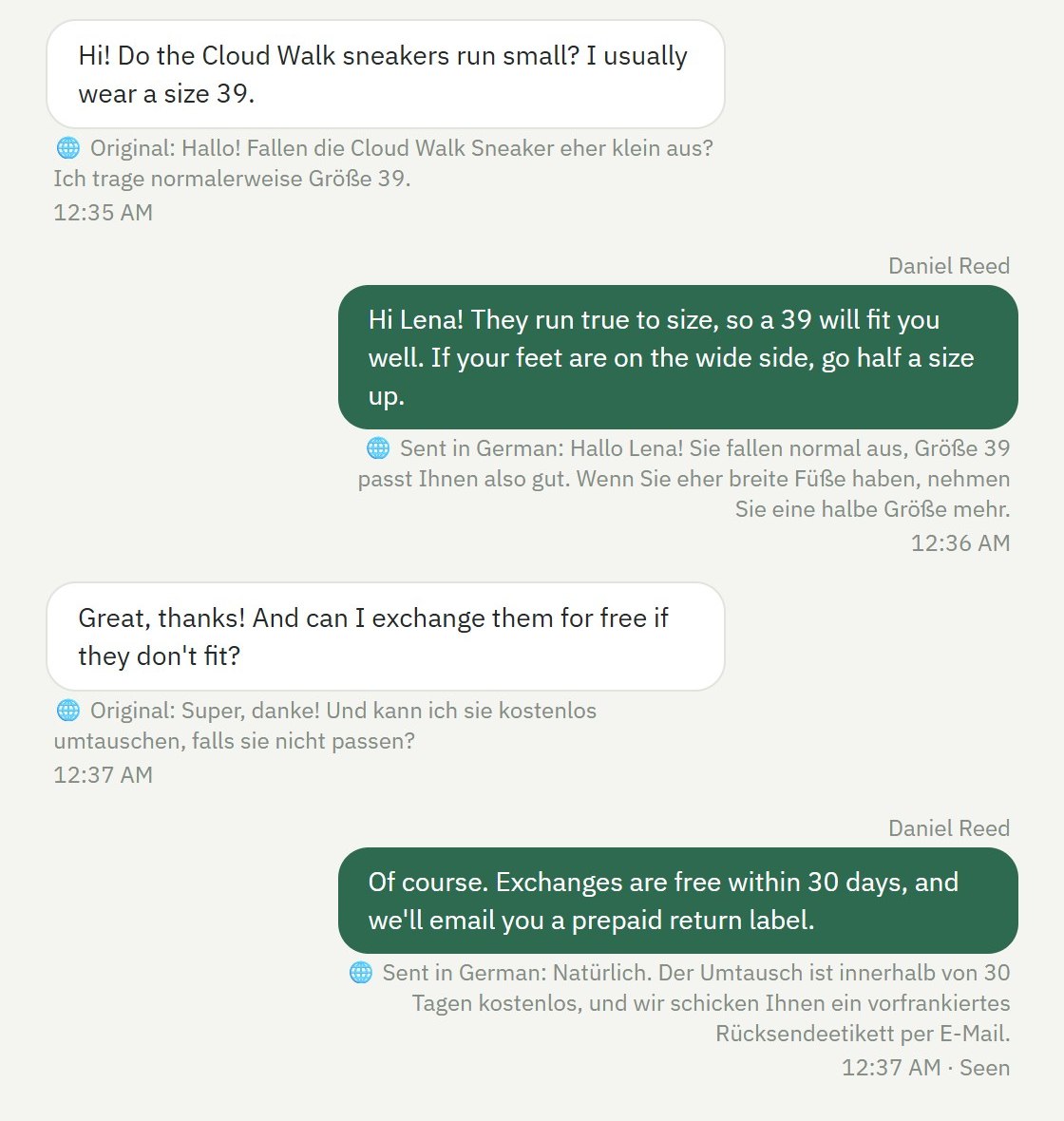
Live translation: the visitor writes in German and the agent replies in their own language. The original text is shown under each message.
The dashboard shows the visitors on your site in real time: which country they're from, which page they're on, how long they've been on the site and how they found you (Google search, a Google Ads ad, Instagram, another website...). If a visitor has been sitting on the cart page for a while, you can start a chat yourself and offer to help.
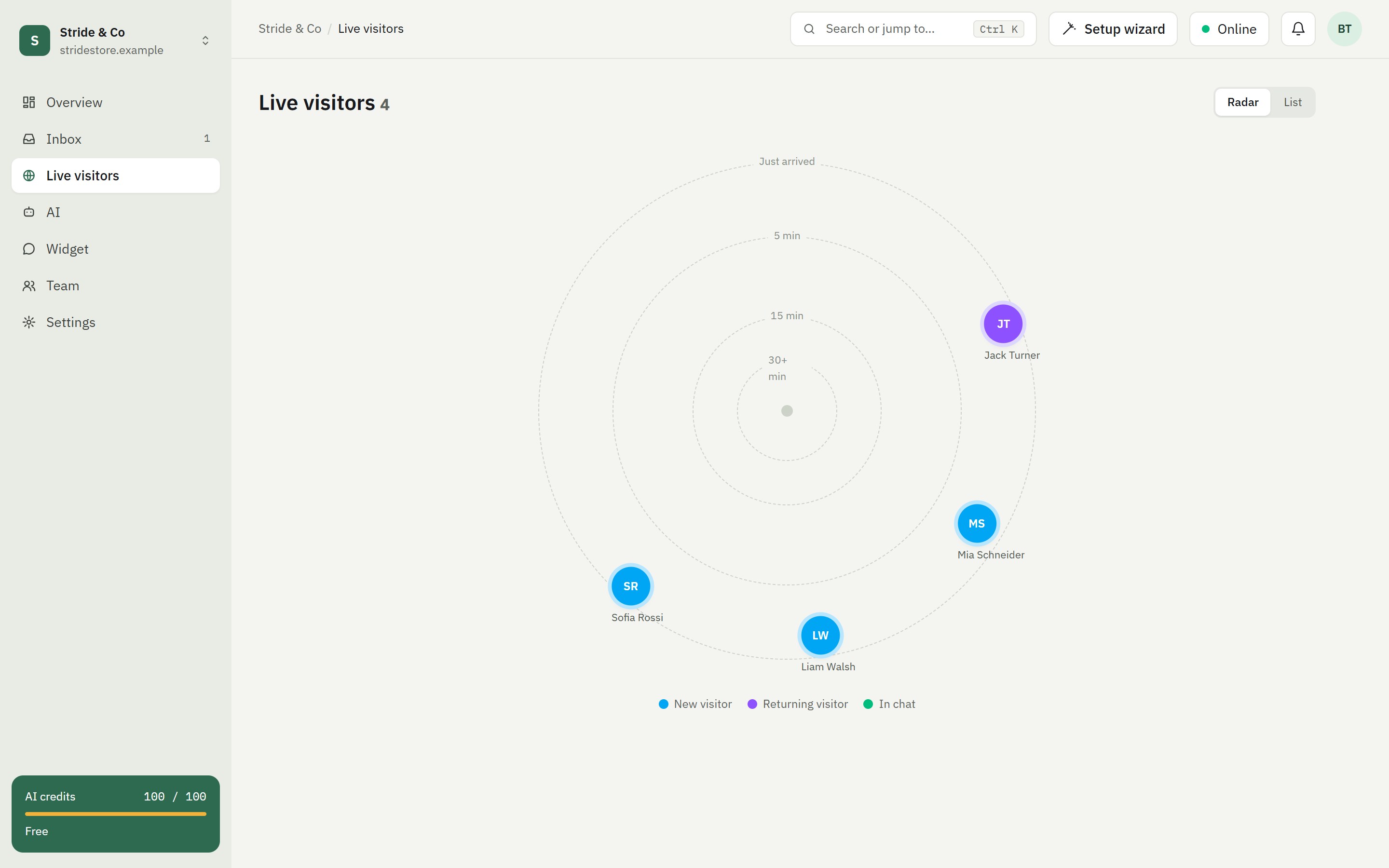
The live visitor radar: new arrivals appear on the outer ring and move toward the centre the longer they stay.
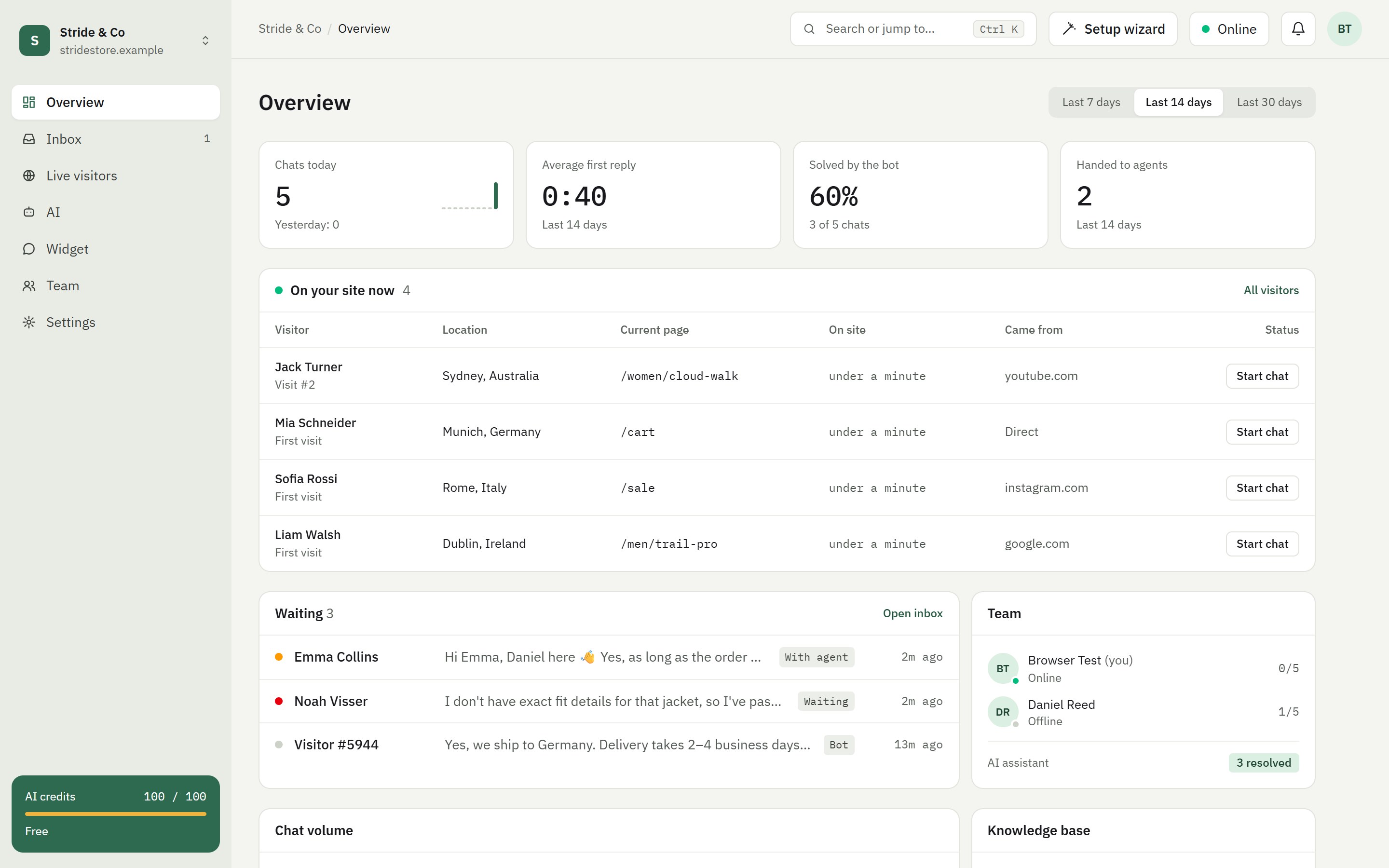
Overview: daily chats, first reply time, the share of chats solved by the assistant and visitors on your site, all on one screen.
Yes. Zovama is free during the beta: 2 agents, 1 website, 100 AI replies a month, up to 30 learned pages, 1 document and 90 days of chat history. No credit card required.
No. The chat window loads in the background after your page has loaded and doesn't affect your site's loading speed.
Chats are sent over an encrypted connection, and you decide how long data is kept. See the privacy policy for details.
It works on any website where you can add code, including WordPress, WooCommerce, Shopify, Wix, OpenCart and custom HTML sites.
An assistant that answers your visitors' questions even when you're away can be on your website after a five-minute setup. To see it in action, just ask the chat on zovama.com a question.
If you need help with setup or anything else, just get in touch. We're happy to help.