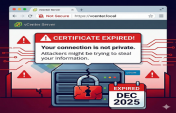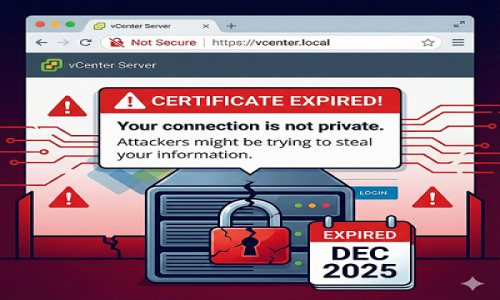
If you are trying to access your VMware vSphere Client and getting connection errors, or if your browsers are throwing "NET::ERR_CERT_DATE_INVALID" errors, your vCenter Server Appliance (VCSA) SSL certificates have likely expired. This is a common issue that locks administrators out of the web interface.
In this guide, I will show you how to renew (reset) these certificates using the command line interface (SSH).
Many administrators ask: "Can't we simply log into the management interface at port 5480 and renew it there?"
The short answer is: No.
While the VAMI (https://vcenter-ip:5480) is great for monitoring, it cannot generate new self-signed certificates from scratch to replace expired ones. Also, when certificates expire, the SSO service often fails, preventing login to port 5480.
The only reliable way to reset expired self-signed certificates is via the SSH console using the built-in certificate-manager tool.
Open PuTTY and SSH into your vCenter IP. Log in with root. If you land on the appliance screen, type:
shell
Run the following command:
/usr/lib/vmware-vmca/bin/certificate-manager
Select Option 8 from the menu:
8. Reset all Certificates
administrator@vsphere.local password.The tool will stop services, replace certificates, and restart. This takes 10-20 minutes. Look for the message "All certificates generated and replaced successfully".