


How to Fix Windows Server 2019 RDP Connection Failures, Unresponsive Task Manager, and 0x800f082f KB5129238 Error
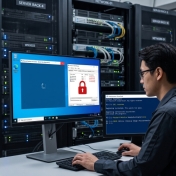
Following recent Windows Server 2019 cumulative updates, system administrators have frequently reported critical Remote Desktop Services (RDS) issues[cite: 1, 2]. Typical symptoms include new users being completely unable to establish RDP connections, existing sessions getting stuck, and local server management utilities—such as Task Manager—failing to open or becoming completely unresponsive. To resolve this widespread issue, Microsoft released an Out-Of-Band (OOB) patch, KB5129238[cite: 1, 2].
However, applying this fix is often challenging. Launching the downloaded .msu file directly from the Microsoft Update Catalog frequently results in a "Some updates were not installed" error[cite: 1]. Attempting a manual installation via DISM often throws Error: 0x800f082f[cite: 10, 11] or gets stuck indefinitely at [= 3.0% ][cite: 14].
In this article, we break down how to clear stuck update locks and successfully deploy the KB5129238 patch on Windows Server 2019 step by step.
1. Root Causes Behind the Connection & Installation Failures
The core issue stems from a deadlock within the Remote Desktop Services stack triggered by recent updates, which prevents authentication and causes Task Manager to hang[cite: 1, 2]. When trying to apply the KB5129238 patch[cite: 1, 2], the installation fails due to two main system states:
SessionsPendingRegistry Lock: An unfinished or interrupted update process locks the Component-Based Servicing (CBS) engine[cite: 10, 11, 12]. Even after restarting the server, this lock persists and causes DISM to returnError: 0x800f082f[cite: 10, 11].- Outdated Servicing Stack Update (SSU):** If the server's servicing stack engine is outdated, DISM cannot process the patch and freezes at
%3.0[cite: 9, 14, 15].
2. Step-by-Step Resolution
Step 1: Clear the "SessionsPending" Registry Lock
First, remove the registry lock preventing Windows Update and DISM from processing new packages[cite: 10, 12].
- Press
Win + R, typeregedit, and press Enter to open the Registry Editor. - Navigate to the following path[cite: 12]:
HKEY_LOCAL_MACHINE\SOFTWARE\Microsoft\Windows\CurrentVersion\Component Based Servicing[cite: 12] - Locate the
SessionsPendingkey underComponent Based Servicingand delete it[cite: 12].
Pro Tip (If the folder cannot be deleted): On certain server configurations, permission restrictions might prevent deleting the
SessionsPendingfolder itself. If this occurs, simply double-click into theSessionsPendingfolder and delete all individual values/keys listed inside it. Clearing its contents achieves the exact same result.
Step 2: Restart the Server and Try the .msu Installer First
Once the pending session flags are cleared, attempt the standard installation method:
- Reboot the server.
- Double-click your downloaded KB5129238
.msuinstaller[cite: 1]. - In many cases, clearing the
SessionsPendinglock allows the standard Windows Update Standalone Installer to run without errors[cite: 12].
Step 3: If .msu Still Fails, Use DISM with the .cab Package
If the .msu file refuses to launch or complete[cite: 1], bypass the graphical interface and deploy the cabinet file via DISM[cite: 6].
- Extract the downloaded KB5129238
.msufile using WinRAR or 7-Zip into a folder (or change its file extension to.zipand extract)[cite: 6, 8]. - Inside the extracted folder, identify these two key files[cite: 9]:
SSU-17763.9242-x64.cab(Servicing Stack Update)[cite: 9]Windows10.0-KB5129238-x64.cab(Main RDP Patch)[cite: 9]
- Open PowerShell or Command Prompt as Administrator.
- Order matters! Install the SSU package first to update the servicing engine[cite: 9]:
dism /online /add-package /packagepath:.\SSU-17763.9242-x64.cab - Once the SSU completes (typically within seconds), apply the main RDP fix[cite: 9]:
dism /online /add-package /packagepath:.\Windows10.0-KB5129238-x64.cab
Final Verification
Clearing the registry locks under SessionsPending unblocks the system[cite: 10, 12], allowing update packages to be accepted[cite: 11]. Restarting the server and running the .msu file is the fastest route[cite: 1]; however, deploying the SSU package via DISM first guarantees success if the GUI installer hangs[cite: 9].
Once installed and followed by a final reboot, RDP connection failures, stuck user sessions, and Task Manager unresponsiveness on Windows Server 2019 will be fully resolved.