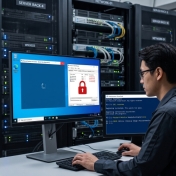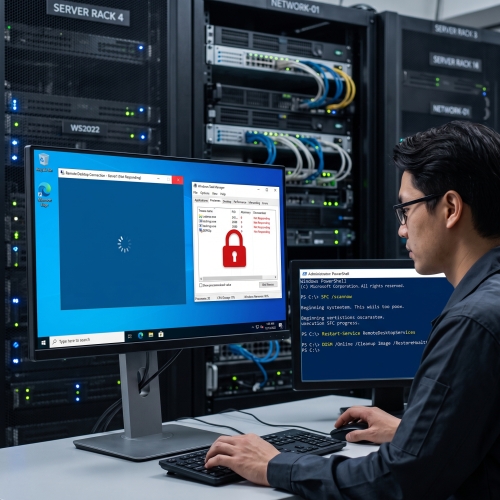
Uninstalling a recently installed Windows update to fix application issues (such as Excel or Office crashes) is a standard troubleshooting step in Windows Server environments (2016, 2019, 2022). However, if the Windows Component Store (WinSxS) fails to synchronize properly during the uninstallation, it can trigger a cascading system freeze.
This problem typically manifests through three distinct symptoms:
Error: 0x800f082f in the Command Prompt.This issue is not caused by a graphics driver failure or an explorer.exe crash. Instead, the incomplete update removal leaves an unfinished "Reboot Pending" flag in the background.
Because the Component Store remains locked:
SessionEnv (Remote Desktop Configuration) service cannot initialize, hanging the RDP login screen.0x800f082f.Because the RDP login screen is frozen, soft shutdown commands within the operating system will not respond. Force a restart or power cycle directly from your virtual machine management panel (Hyper-V, VMware ESXi, Proxmox, etc.).
Once the server boots back up to the login screen, clear the pending registry flag to prevent DISM from failing with error 0x800f082f:
cmd, and press Ctrl + Shift + Enter to open Command Prompt as Administrator.reg delete "HKLM\SOFTWARE\Microsoft\Windows\CurrentVersion\Component Based Servicing\RebootPending" /fWith the registry lock removed, cancel all incomplete update operations by running:
dism /online /cleanup-image /revertpendingactionsrevertpendingactions command may have remained pending without completing. Open an elevated Command Prompt, run the DISM command once more, and confirm the restart.Executing these steps clears the Component Store lock, restoring full functionality to Remote Desktop services, Task Manager, and Server Manager. Once your server is stable, run sfc /scannow in Command Prompt to verify system file integrity, and temporarily hide or defer the problematic KB update via WSUS or Windows Update to prevent it from reinstalling automatically.