How to Fix the Annoying RDP Screen Freeze (TCP vs UDP)
It's a classic scenario for any administrator: You are connected to your Windows Server via Remote Desktop, and suddenly, the screen freezes. You assume the connection dropped.
But it hasn't. If you disconnect and reconnect, you realize that your "blind" clicks actually registered. The session was alive, but the display was frozen.
This is not a bug; it's a protocol issue. And yes, there is a permanent fix.
The Root Cause: UDP's Zero Tolerance
Modern Windows versions (Server 2019/2022, Windows 10/11) prioritize UDP (User Datagram Protocol) for RDP connections. UDP is fast and great for streaming, but it has zero tolerance for packet loss.
If your internet connection has even a micro-drop (common in Wi-Fi or long-distance routing), the UDP stream breaks, freezing your screen. Meanwhile, your mouse clicks (sent via TCP) keep working.
The solution? Force RDP to use the rock-solid TCP Protocol.
Method 1: The Server-Side Fix (Group Policy)
This is the best method as it applies to all users connecting to the server.
- On the server, run
gpedit.msc
- Navigate to:
Computer Configuration > Administrative Templates > Windows Components > Remote Desktop Services > Remote Desktop Session Host > Connections
- Double-click on "Select RDP Transport Protocols".
- Set it to Enabled and select "Use only TCP" from the dropdown.
- Click OK.
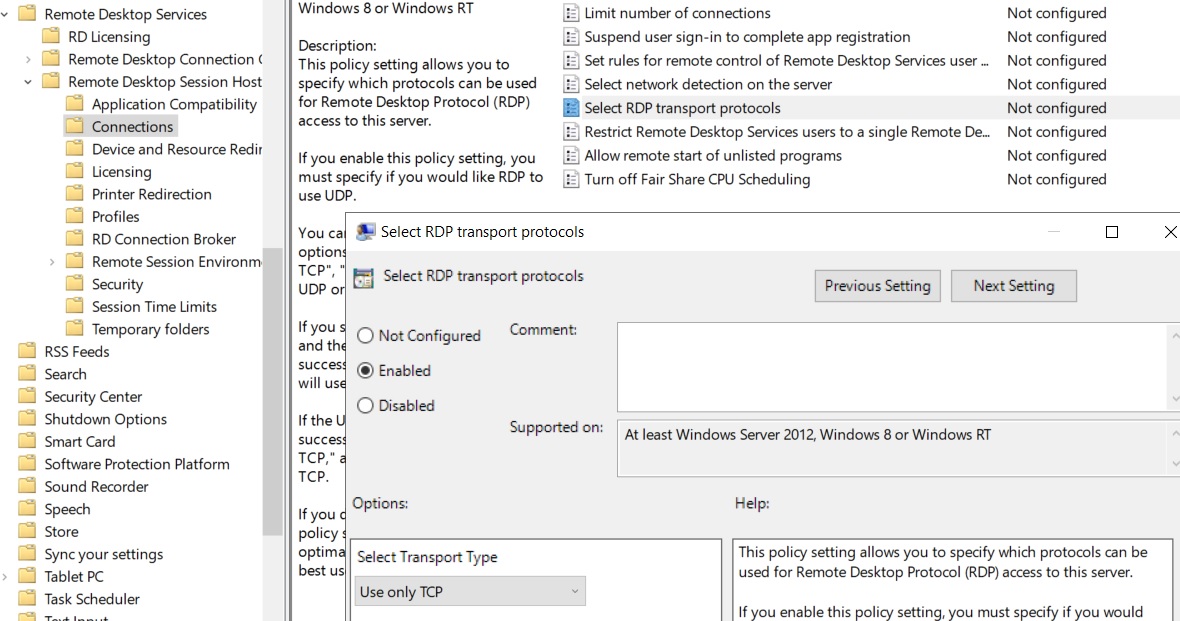
Set "Select RDP Transport Protocols" to "Use only TCP"
Method 2: The Registry Fix (Fastest Way)
If you don't want to navigate menus, or if you are using Windows Server Core, use this command to apply the same setting instantly.
- Open Command Prompt (CMD) as Administrator.
- Paste the following command:
REG ADD "HKLM\SOFTWARE\Policies\Microsoft\Windows NT\Terminal Services" /v SelectTransport /t REG_DWORD /d 1 /f
(Value 1 means TCP Only. Value 0 is Dual UDP/TCP).
Method 3: The Client-Side Fix (If You Can't Touch the Server)
If you don't have Admin rights on the server, you can force your own computer to disable UDP for RDP sessions.
- On your local PC, run
gpedit.msc.
- Go to: Computer Configuration > Administrative Templates > Windows Components > Remote Desktop Services > Remote Desktop Connection Client.
- Enable the policy "Turn off UDP On Client".
Final Step: Apply and Restart
For these changes to take full effect, a server reboot is recommended. Alternatively, open CMD as Admin and run gpupdate /force.
Your RDP connection might feel slightly less "smooth" on animations, but it will be rock-solid and will never freeze on connection hiccups again.
Need a Stable Network?
Even TCP can't fix a bad network. Switch to ErkmenHost Dedicated Servers premium Anti-DDoS network. Low latency, high uptime, and no packet loss.
View Dedicated Servers